AptlyStar.ai enables you to seamlessly integrate a variety of data sources into your data stores, enriching your AI agent’s knowledge base. Supported source types include:
Webpage links
Text files
File uploads (PDFs, DOCs, etc.)
REST APIs
YouTube links
GitHub repositories
This allows for more powerful and context-aware query responses from your AI agents.
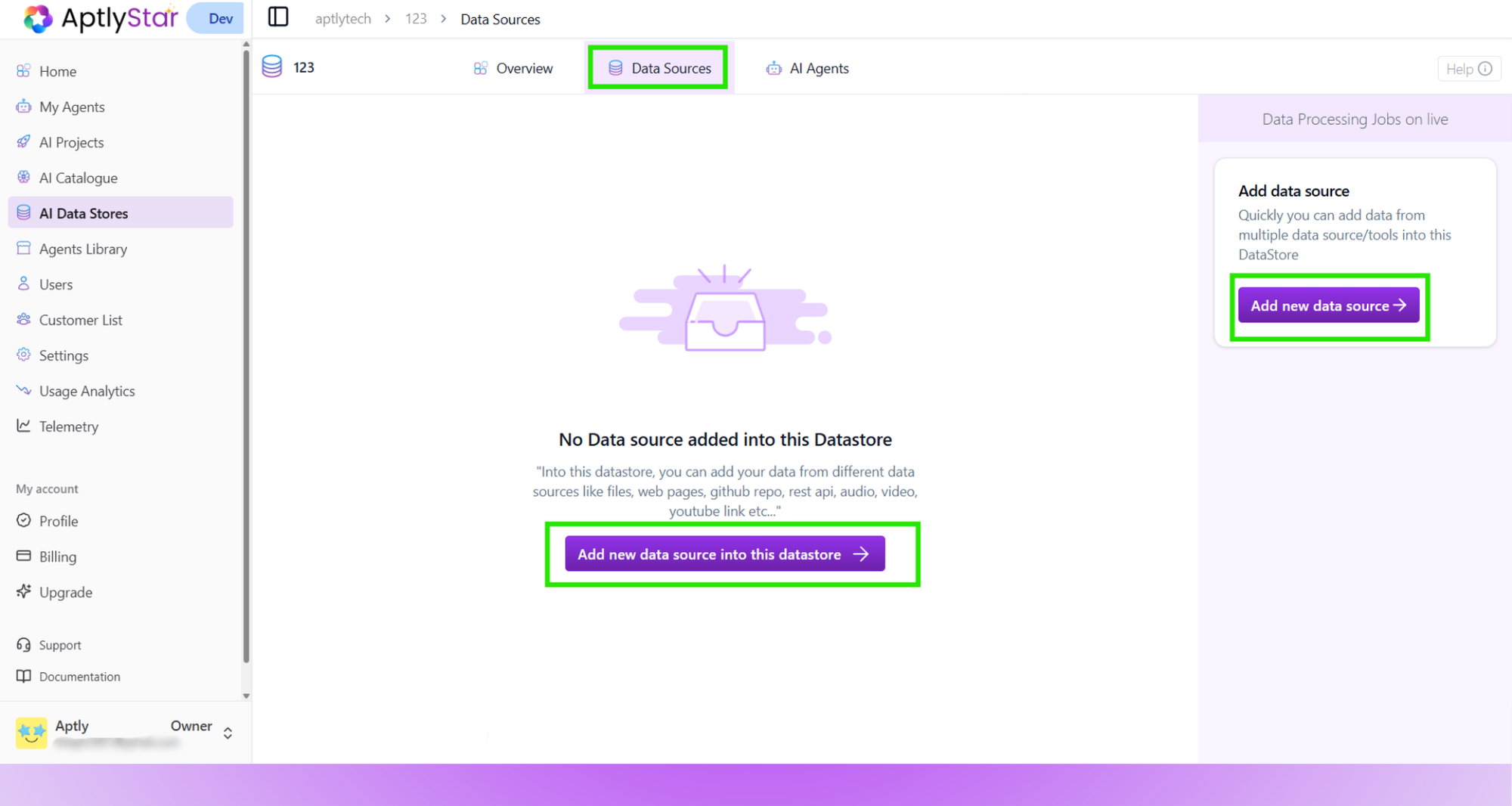
From the AI Data Stores console, choose your desired data store.Then:
Click on the Data Sources tab (1)
Click Add new data source (2)
Data Store Console: Data Sources Tab
2
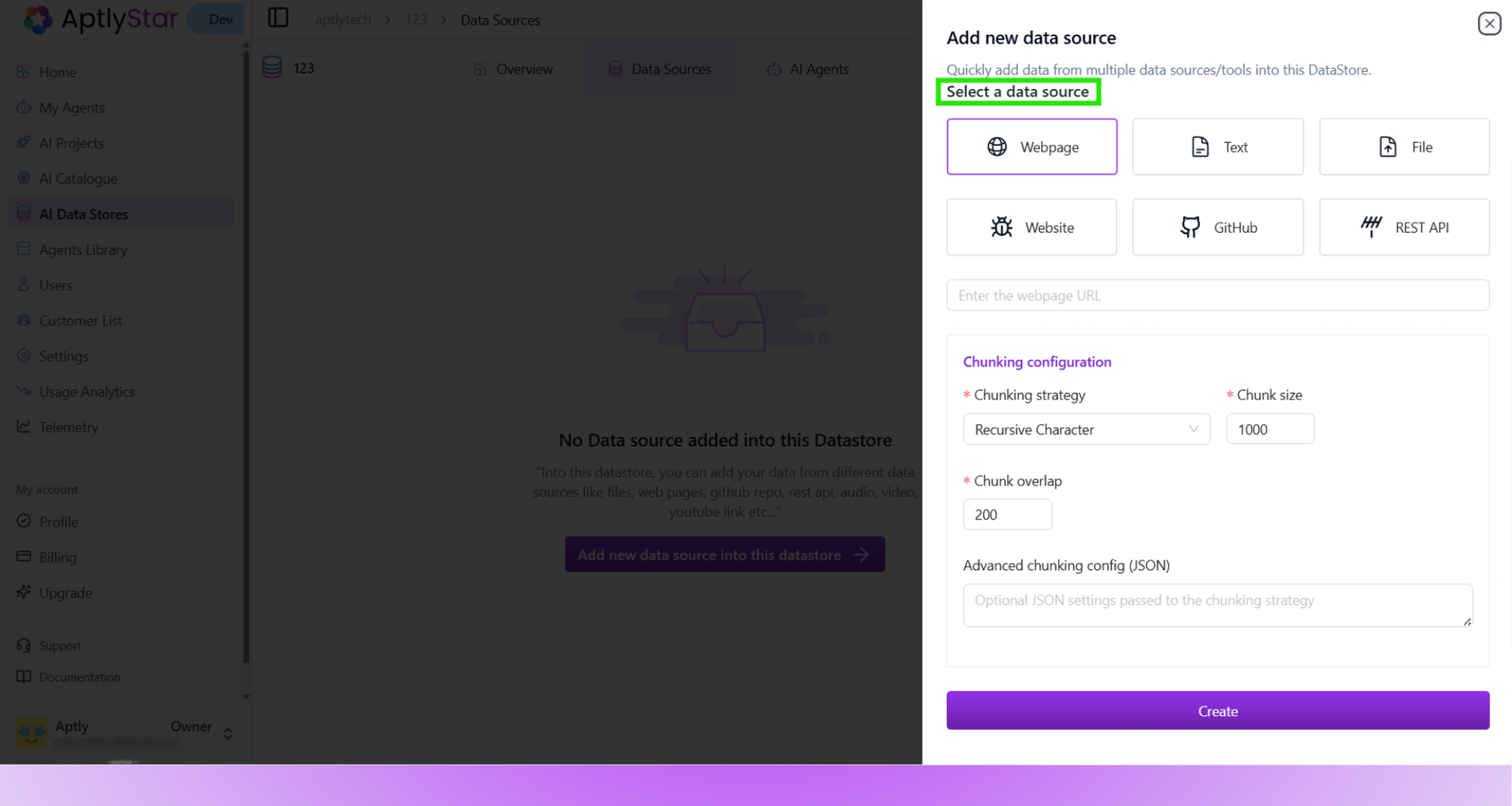
Choose & Import Data Source
Now you can import data by:
Entering a webpage URL
Uploading a file
Adding plain text
Connecting via REST API, YouTube, or GitHub
After selecting and filling the input, click Create (4).
You can add multiple sources to populate your data store.
Add Data Source: Select Type and Submit
3
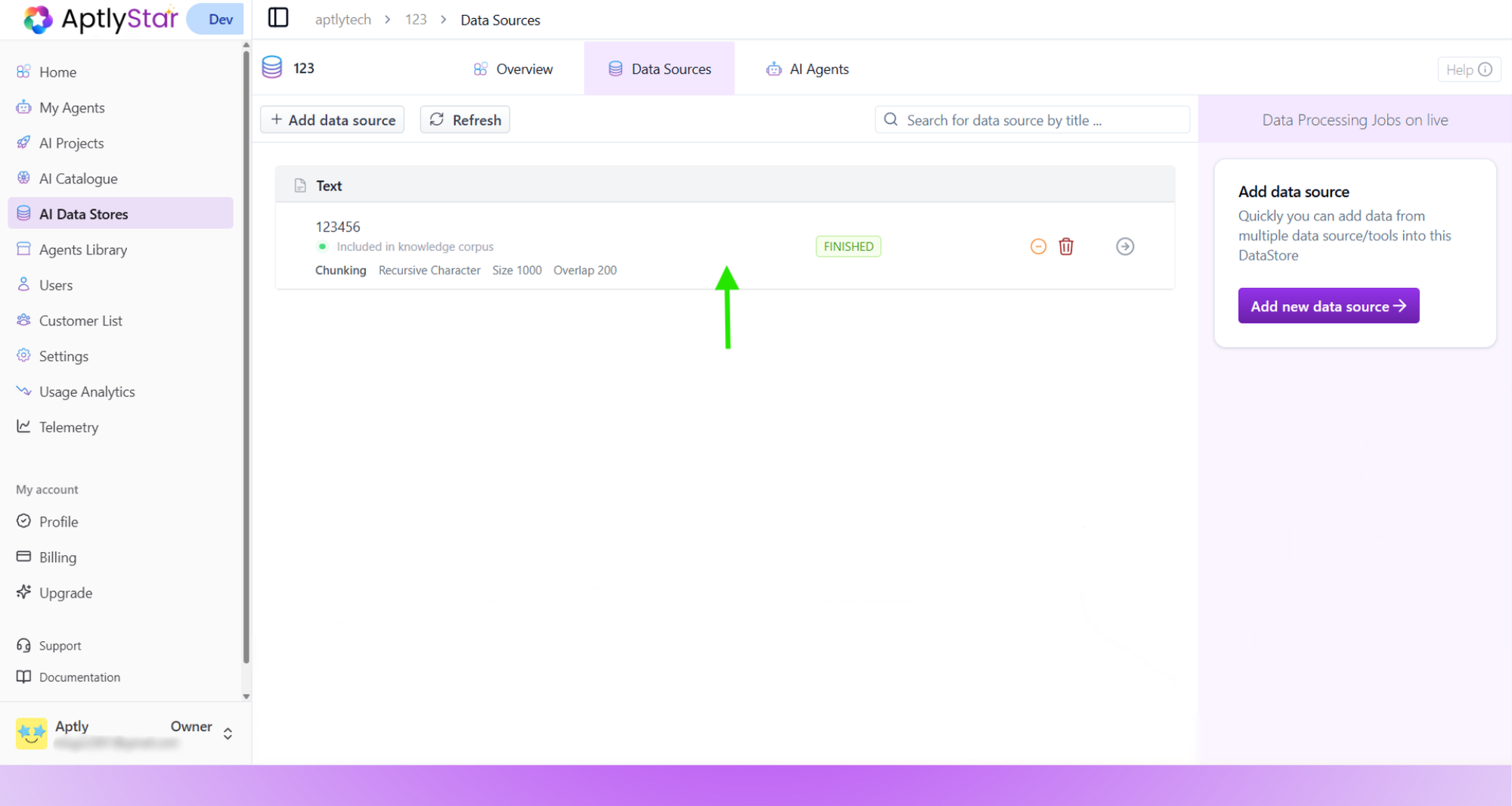
Verify Data Import
Once completed, a “Finished” success message will appear.
You can now see all imported sources listed in your datastore under the Data Sources section.
The edit feature allows you to quickly correct mistakes, update outdated information, or refine the quality of your AI agent’s knowledge base — ensuring more accurate and reliable responses.
1
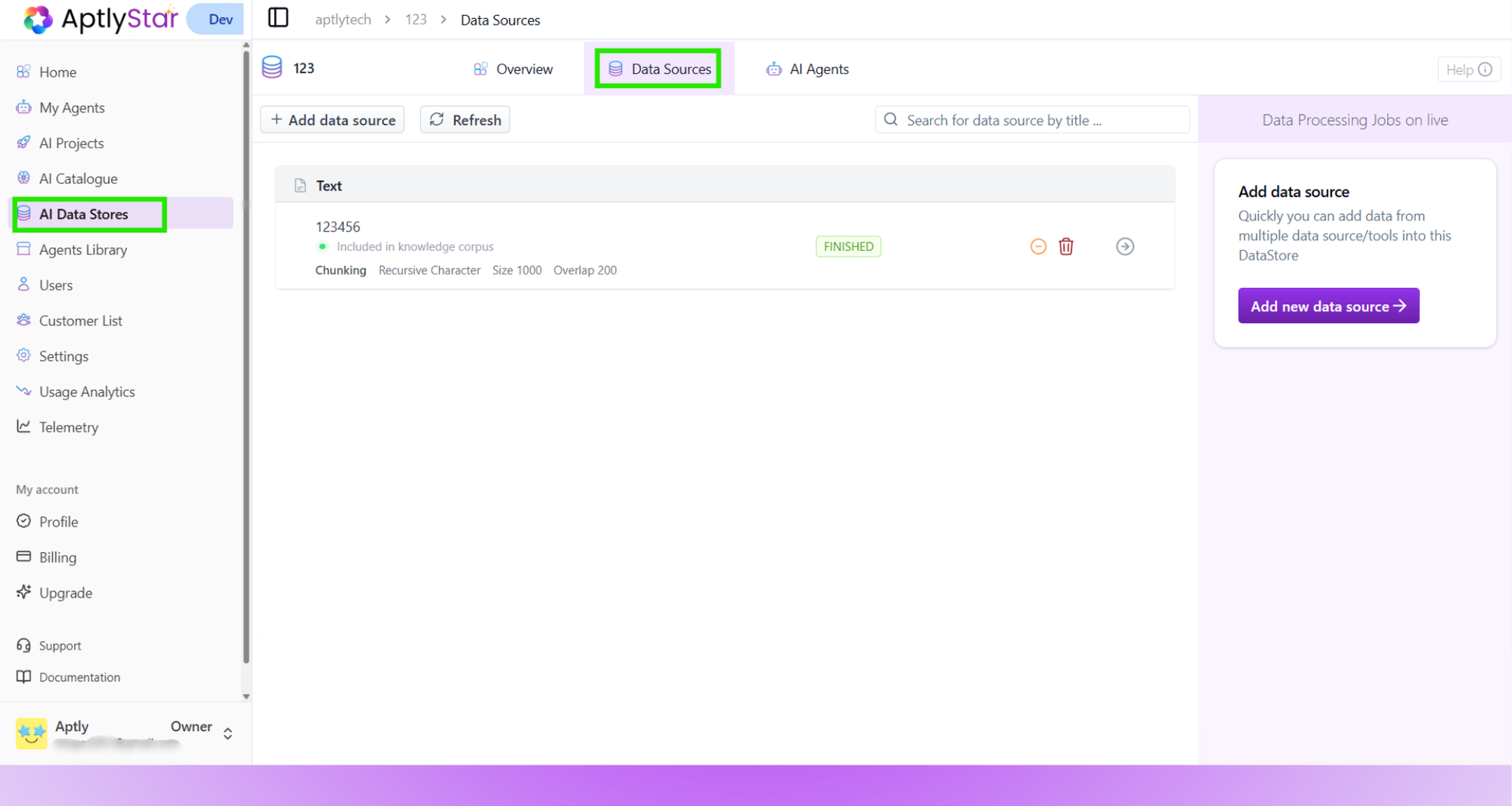
Step 1: Go to Data Sources Tab of a Data Store
Navigate to AI Data Stores, select your data store, and click on the Data Sources tab.
Data Store Console: Access Data Sources Tab
2
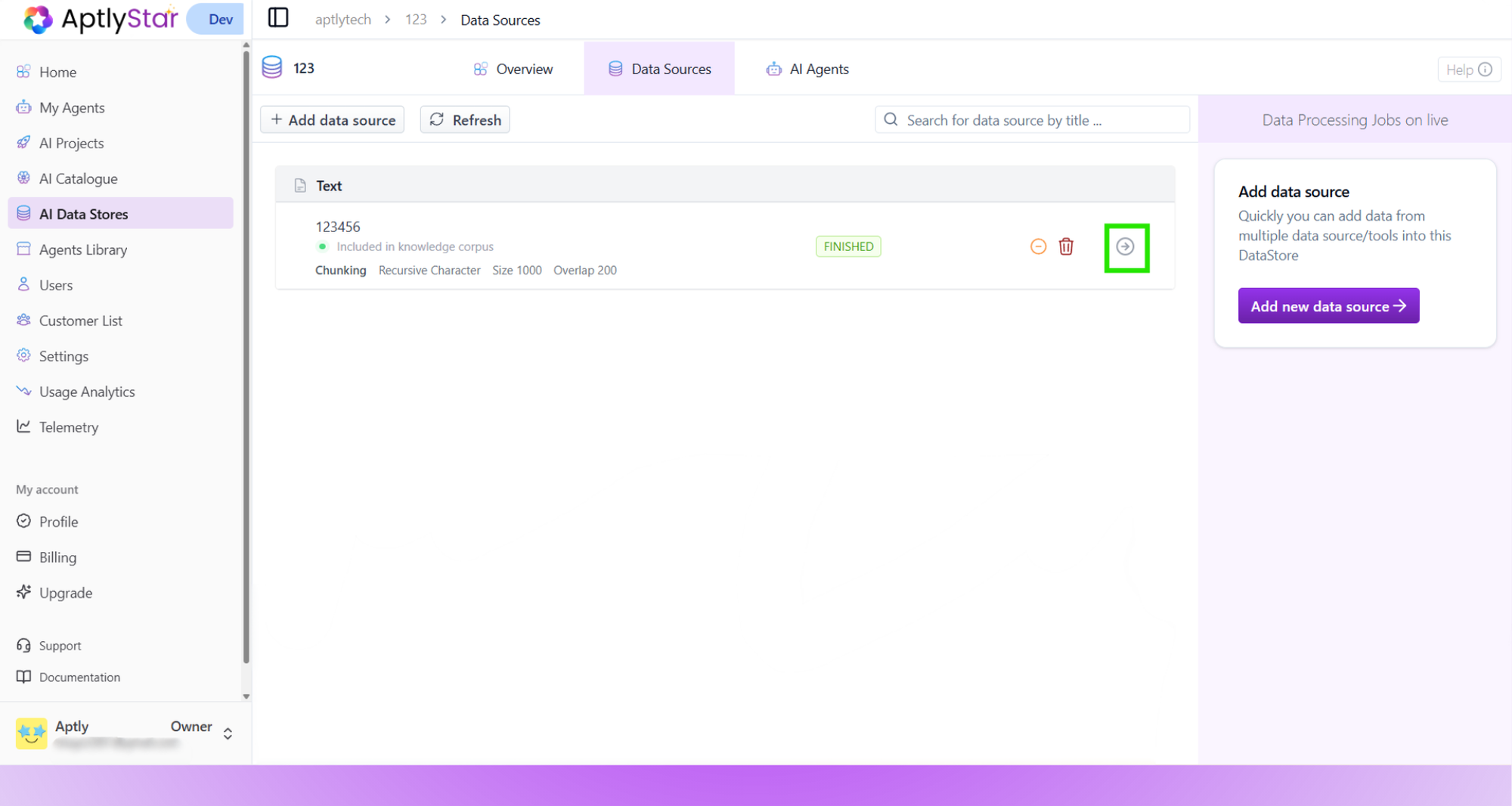
Step 2: Open the Data Source
Find the data source you want to edit and click the arrow icon next to it to view its details.
Data Source: Open Details
3
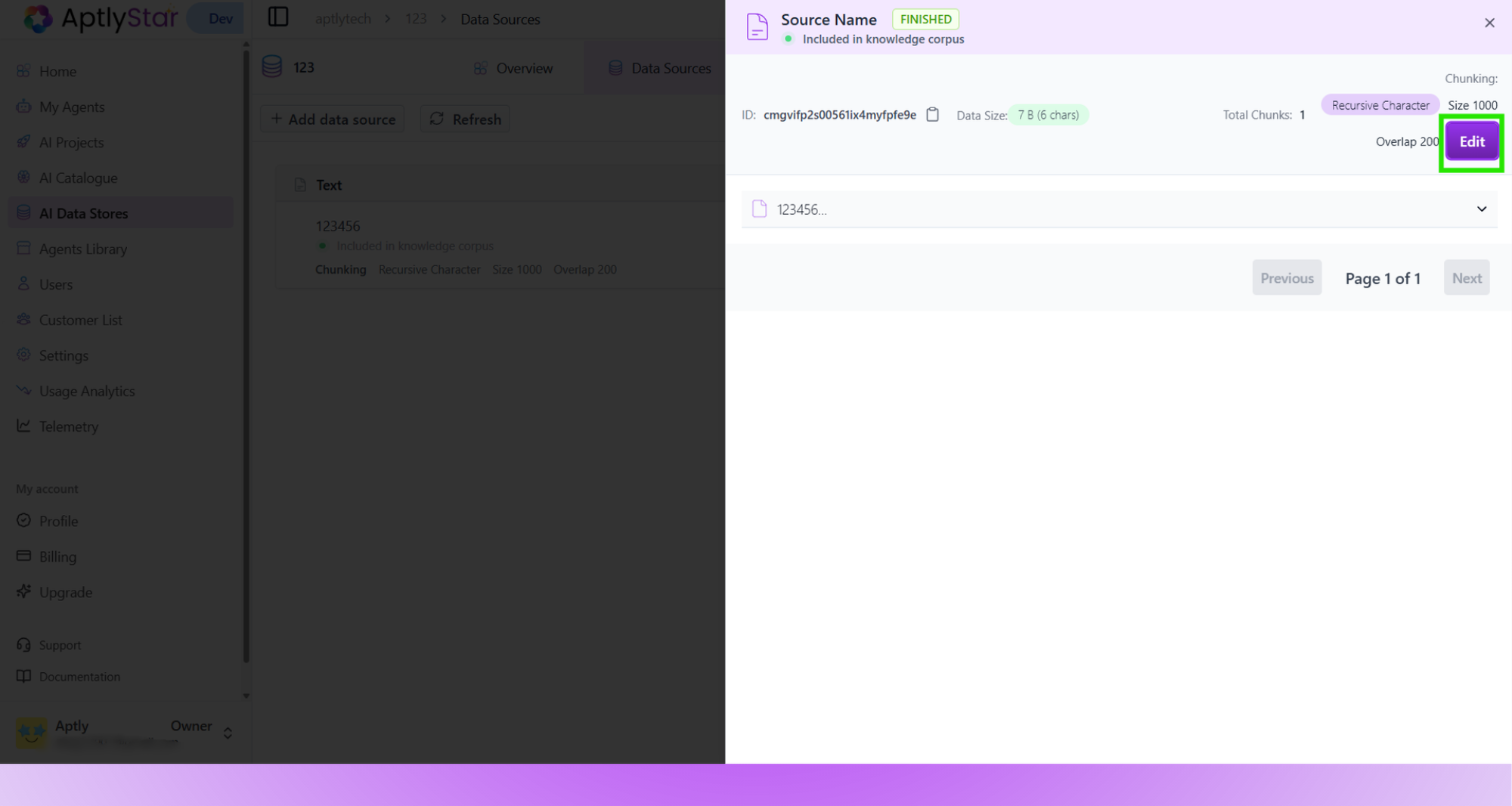
Step 3: Click Edit to Modify
Inside the detail view, click the Edit button to start modifying the content of the data chunk.
Data Source: Edit Mode
4
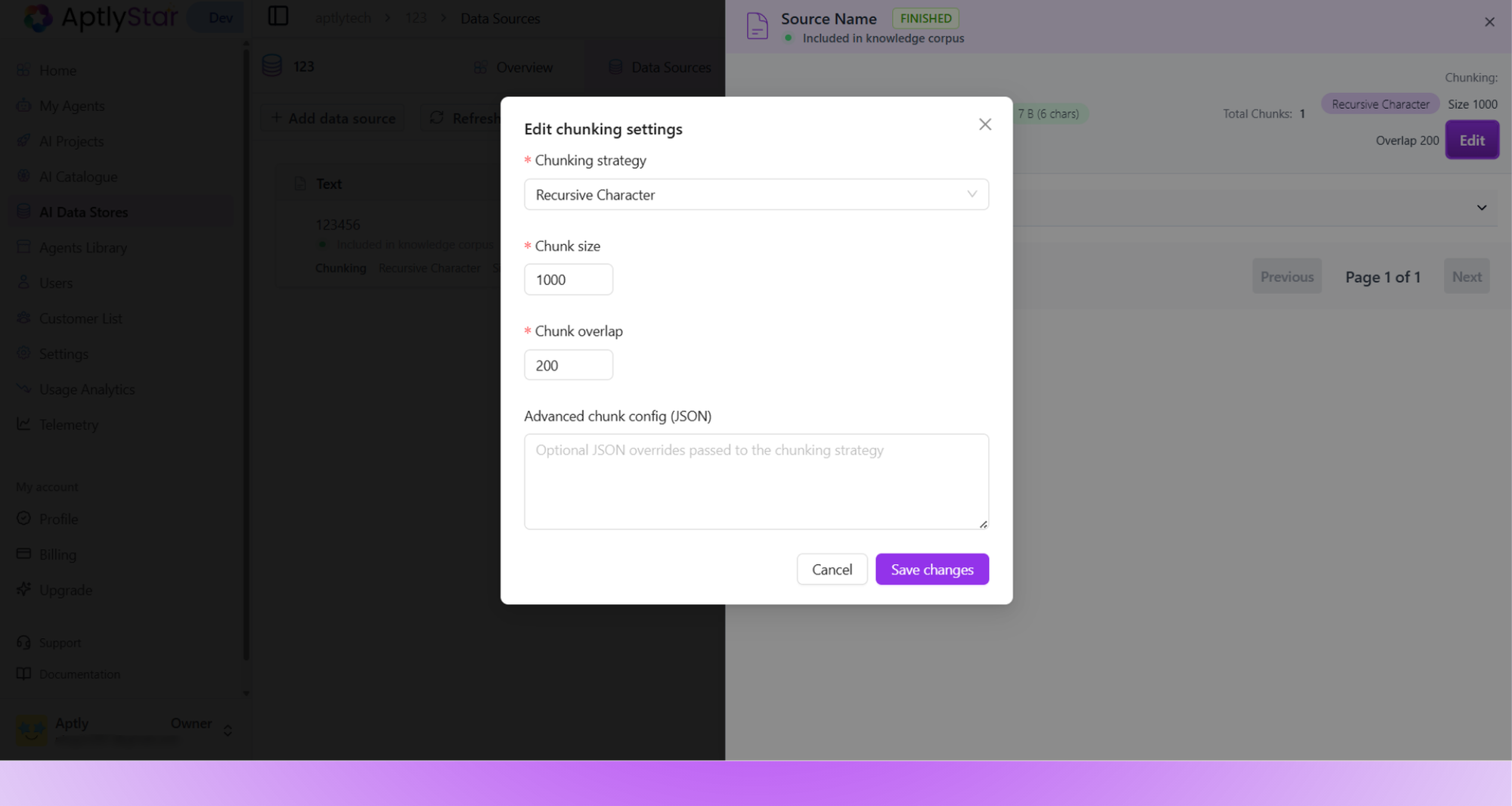
Step 4: Update Content and Save
Make your desired changes to the text and click Save to update the data source.
Data Source: Save Changes
Want to link this data to a agent?
Head over to the AI Agents guide for connecting your agent to data stores.